Occurrence records and species lists can be downloaded as a CSV file. You will need to be logged in to your NBN Atlas account to download the data. See Setting up and using your account for more information.
Before downloading data from the NBN Atlas, you must be sure that you are entitled to use them. Some data have restrictions on their use, depending on the licence-type attributed to them. For instance, data with CC-BY-NC licences cannot be used for commercial purposes. Misuse of CC-BY-NC data may result in a fixed penalty fine. You can find out more about data licenses, here.
Data can be downloaded from various searches on the NBN Atlas.
TABLE OF CONTENTS
- Download via an Occurrence search page
- Download via Regions (exploring by predefined areas)
- Download via Spatial portal
Download via an Occurrence search page
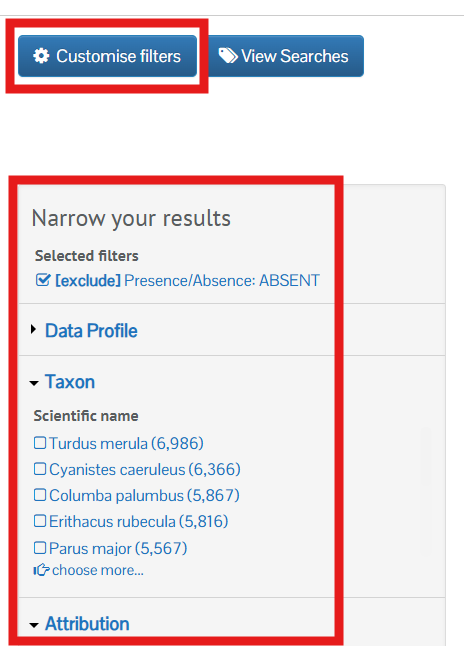
You can navigate to the occurrence search page via various searches on the NBN Atlas and the NBN Atlas Spatial Portal. You can further filter your search on the Occurrence search page using the Narrow your results panel (you can enable more filters via Customise filters).
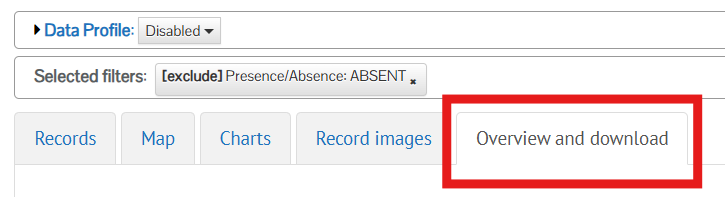
To download a species list or the records click on the Overview and download tab.
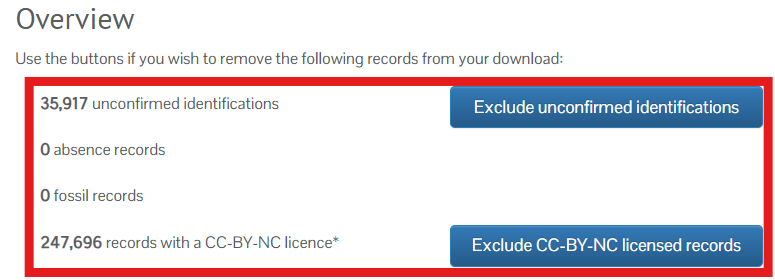
From this tab you can easily remove unverified, fossil records, and CC-BY-NC records (if there are any in your occurrence search).
To download the records click the Download button.
This takes you to the download page. Click select on SELECT for the Occurrence records option to download the individual occurrence records included in your search.

If you want to download a species list for your occurrence search, click on SELECT for the Species checklist option.

When choosing the Occurrence records option you can specify the download file name, the format to download the record in (click on the question mark icons to find out what fields are included for the different formats), and the file output (this download type supports CSV and TSV file formats).
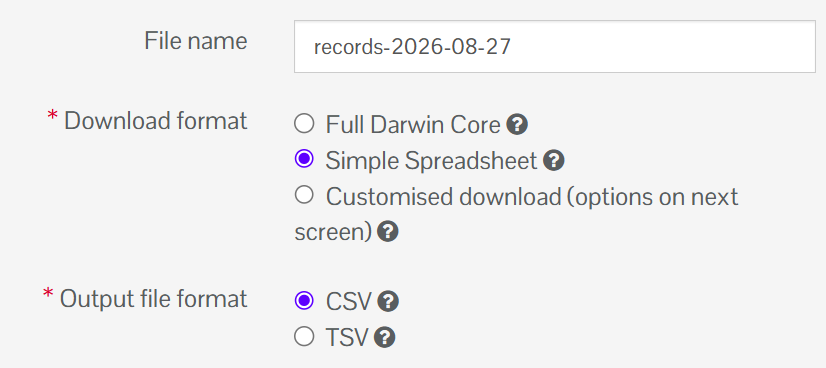
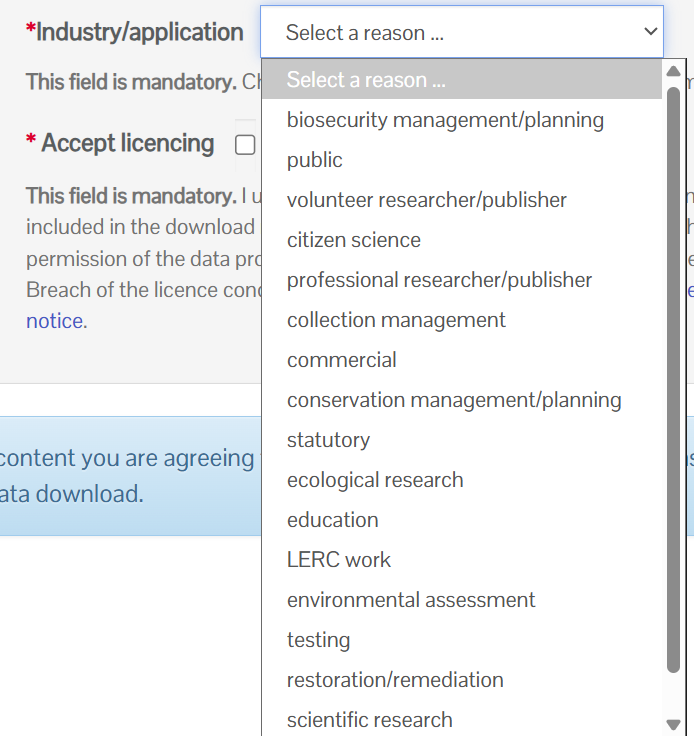
When you have selected your download type, you must specify the download reason (i.e., what purpose are you using the records for) by clicking the appropriate option from the industry/application drop down.
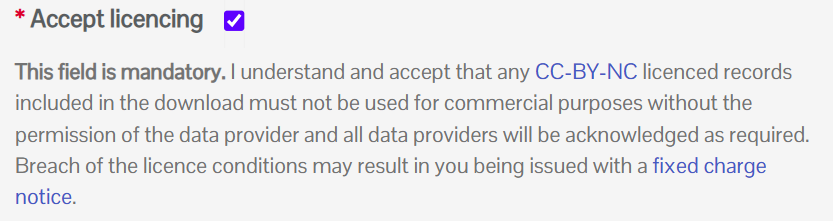
Tick that you accept the licencing conditions of the records.
Finally click Next.

If you download a species list, a CSV file will begin downloading immediately.
If downloading occurrence records your download will be queued. You will receive an email shortly after the download is complete, with a link to download the records, a link to the search you used to download the records or the species list, and information on terms of use and citations to use for the download.
Download via Regions (exploring by predefined areas)
You can use the Regions Portal to easily search for records via a predefined area. See the Searching pre-defined areas section on the Search by location guidance page.
To download the occurrence records or a species list, choose a defined area from the Regions portal. When viewing a record summary for an area, you can download the records via the Download records button.
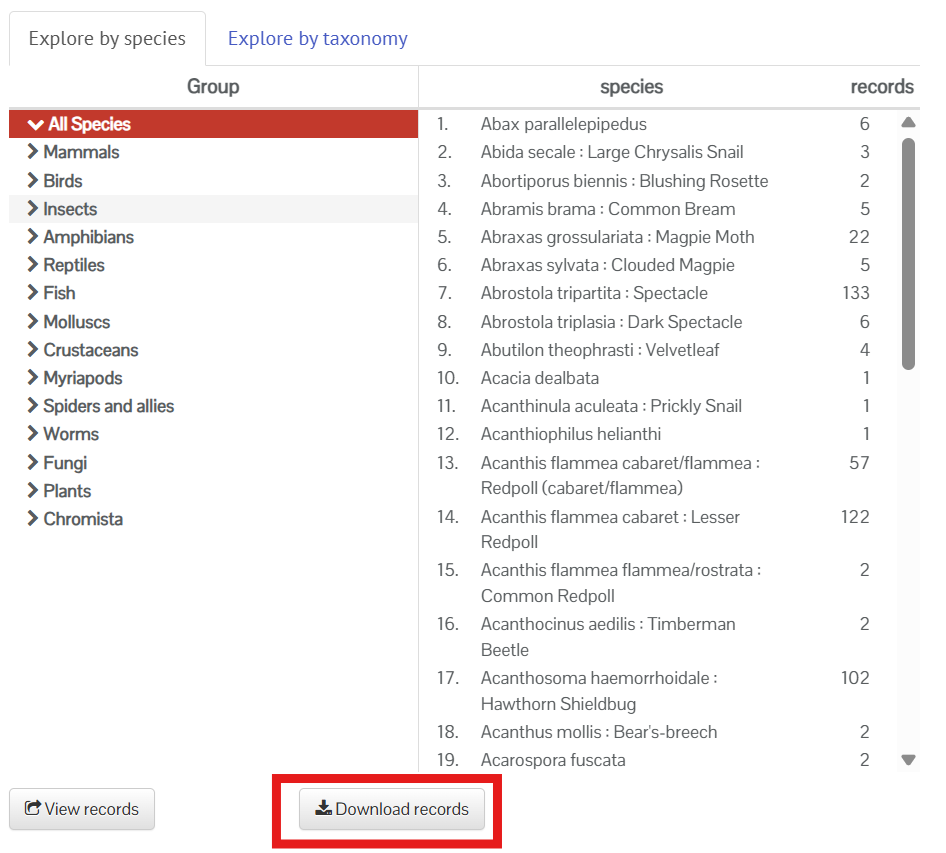
Then follow the steps as described in the section above to download the occurrence records or a species list.
Alternatively, you can navigate to the Occurrence search by clicking the View records button and follow the steps in the Download via an Occurrence search page section. This will allow you to apply further filters to your search and check the licence conditions of the record included on the map.
Download via Spatial portal
When viewing occurrence records in the species portal, you can can download the occurrence records by using the Quick links or Area report tool.
To download a species list via the Spatial portal see the guide for exporting a species checklist on the Spatial portal.
Was this article helpful?
That’s Great!
Thank you for your feedback
Sorry! We couldn't be helpful
Thank you for your feedback
Feedback sent
We appreciate your effort and will try to fix the article